
How to keep files private on iPhone
Choose what needs protection: one PDF, access to an app, or a separate collection of documents. Moving a file into another folder changes where you find it. It does not, by itself, give that file a password.
By Paul Bădărău, maker of Milkglass. Written on 9 October 2026.
This guide explains Apple's built-in options and Milkglass, the app I make. Milkglass is available on the App Store.
Choose the smallest change that solves your problem
- One PDF needs a password. Use Preview's PDF lock if your iPhone has that option. The document stays a PDF; you do not need a separate storage app just for this.
- You want to control who opens an app. Check the app's Home Screen menu for an authentication requirement. This controls entry to the app, rather than creating a separate password for each file.
- You want documents stored apart. Consider separate storage with its own access method. Check local copies, export, and recovery before moving anything important.
For example, a lease PDF may only need a document password. A collection containing that PDF, a spreadsheet, and a text file needs a storage decision as well. Their different formats matter more than a folder's name.
Password-protect a PDF in Preview
On an iPhone with Preview, follow Apple's PDF locking instructions:
- Open the PDF in Preview.
- Open the menu next to the filename and choose Lock.
- Enter and verify the password. Leave Require Password on, then confirm.
Check any earlier unprotected copies separately. If you choose to make a duplicate before locking, that duplicate also needs a deliberate storage choice. These instructions apply to PDFs, not every document format or an entire folder.
Check an app lock before looking for a hidden folder
Apple's app-lock feature can require Face ID, Touch ID, or a passcode for supported apps. Some built-in apps cannot be locked. The setting applies only on the device where you enable it.
An app lock and a document password answer different questions. Neither tells you what happened to a copy already saved in another app, sent in a message, or exported elsewhere. For photo access, see how to lock photos on iPhone.
When separate Drawers fit your files
Milkglass keeps documents and folders in Files inside a Drawer. A pattern opens that Drawer; a different pattern opens a different collection. The entry screen shows no Drawer list or count.
Each Drawer encrypts file bytes, names, folder names, metadata, and thumbnails. Local use needs no Milkglass account or internet connection. Free has no file limit; its limits apply to photos and videos.
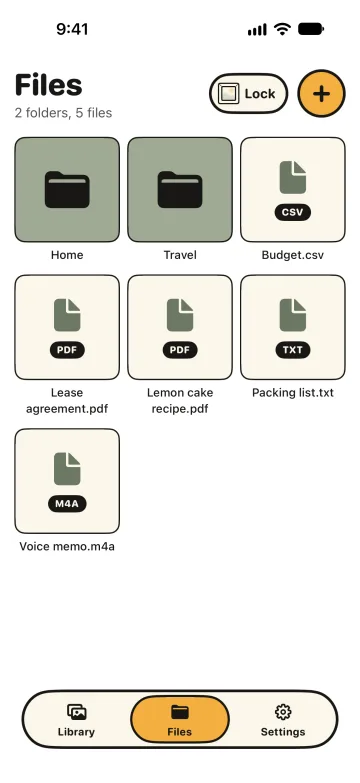
Milkglass imports through its own Import Files action. It does not appear as a storage location in Apple's Files app in this version. See the private-storage checklist for encryption, local access, backup, and recovery choices.
Check every copy before removing an original
Use a harmless sample first. A document called packing-list.txt with a few ordinary words is enough to check your workflow without moving a sensitive file.
- Locate the original. Write down which app or folder holds it. Note any separate copies you already sent or downloaded.
- Import and reopen. Check that the intended file opens in the new location. For Milkglass, leave the app, return, and open the same Drawer with its pattern.
- Try getting it out. Export or share the sample to a location you choose and reopen it there. That exported copy is outside the Drawer.
- Check recovery. Keep the Drawer’s eight recovery words somewhere you trust. Read the backup status and limits before relying on it.
- Decide about the original. An import makes a separate copy; it does not remove the source. Delete nothing until you understand which copies you need.
These are checks for you to run, not a claim that every app or file type passed a test here. For a file whose exact contents matter, opening a preview is only a first check; verify the exported original too.
Keep access and recovery in the same decision
Milkglass locks the open Drawer when you leave the app. It does not make the app or its storage usage invisible. A person with your unlocked iPhone and its passcode can try patterns; repeated failures trigger a wait.
Its encrypted iCloud backup is separate from local storage and is not live sync between devices. If you lose both a Drawer's pattern and recovery words, Milkglass cannot open it for you. Read the backup limits and how recovery words work before removing another copy.
Apple instructions checked on 9 October 2026. Menu names and available features depend on your iOS version.
Requires iOS 26.1 or iPadOS 26.1.