
How to lock photos on iPhone
Someone who knows your phone passcode can open the Hidden album. Keep photos there when you want them out of normal browsing, or use a separate pattern for selected photos and files.
By Paul Bădărău, maker of Milkglass. Updated on 5 November 2026.
I make Milkglass. This guide explains the built-in choices first, then where its separate Drawers fit. Milkglass is available on the App Store.
Choose what you want to lock
- Selected photos inside Photos. The Hidden album removes those items from normal browsing while keeping them in your Photos library.
- Entry to the Photos app. An app lock requires authentication before the app opens. It does not move your photos into a different collection.
- A separate private collection. Another app can store its own copies and use its own access method. Check import, export, backup, and recovery before choosing one.
Think of lending someone your unlocked phone to use another app. Locking Photos addresses entry to Photos. Keeping a few items out of everyday browsing addresses a smaller task. Choose for the access you need, rather than assuming every kind of lock does the same thing.
Lock the Photos app
- On the Home Screen, touch and hold Photos.
- Choose Require Face ID, Touch ID, or Passcode, as offered.
- Confirm the requirement and authenticate.
Follow Apple's app-lock instructions for your device. If the option is absent, check your iOS version and available settings. Not all built-in apps support locking.
Apple's app lock uses device authentication, rather than a new Photos-only password. It applies only to that device. Locking an app and hiding its icon are different options; preinstalled apps cannot be hidden using this feature.
Use the Hidden album for individual photos
Touch and hold a photo or video in Photos, choose Hide, and confirm. On iOS 16 and later, the Hidden album is locked by default. Find it under Utilities and authenticate to view it.
For the full workflow, including unhiding items and hiding the album from view, read how to hide photos on iPhone. Those steps follow Apple's Hidden album instructions and passcode access guide.
An ordinary album is a way to organize photos. For private items inside Photos, use the documented Hidden album controls instead of treating an album name as an access rule.
When a separate pattern fits better
Milkglass stores photos, videos, and documents in encrypted Drawers. Each pattern opens one Drawer. Library holds photos and videos; Files holds documents and folders. The entry screen has no list of Drawers and no count.
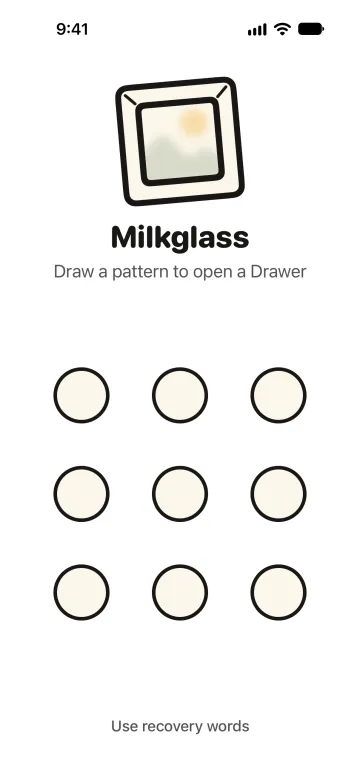
A Drawer has its own access method rather than a Photos-only Face ID setting. The app locks the open Drawer when you leave it. Items already on this iPhone open without an account or a network connection. Items still arriving during a restore need a connection.
This is not a promise that Milkglass cannot be discovered. The app and its storage usage can remain visible in system records. Someone with your unlocked phone and its passcode can try patterns; repeated failed attempts add a wait.
If you also want documents kept apart, see how to keep files private on iPhone. For a broader comparison of storage choices, read what to check in a private photo app.
A lock does not remove other copies
Importing from Photos into Milkglass leaves the original in Photos. Hiding a photo also keeps it in Photos. A photo or video captured directly inside a Drawer is not saved to Apple Photos.
A copy you shared, downloaded, or exported has its own location and access rules. Check those copies separately. Before sending a photo, you may also want to check its location data or cover details in the picture.
Check the setup with a harmless photo
- Choose a non-sensitive photo and decide whether you need an album lock, an app lock, or separate storage.
- Apply your chosen method, leave the app, and return. Check what it asks you to do before you see the photo.
- Locate the original and any exported copies. Do not assume the access rule follows every copy.
- Read the recovery instructions before relying on the setup. For a Milkglass Drawer, save its eight recovery words.
If both a Drawer's pattern and recovery words are lost, Milkglass cannot open it for you. Its encrypted iCloud backup is not live sync, and a backup cannot restore an item it never received. See the storage and backup choices before removing another copy.
Apple instructions checked on 5 November 2026.
Requires iOS 26.1 or iPadOS 26.1.